

Checking if your system’s virtualisation features are on is key for keeping your digital world safe. Today’s apps, from coding tools to security software, need these features to work well. If not set up right, you might face slow virtual machine speeds or security risks.
This guide shows you three ways to check if Intel VT-x is enabled. First, we look at BIOS-level verification, the best way to check settings directly. For those who don’t like messing with system firmware, we’ll show you Windows tools that give clear results. Lastly, we’ll talk about third-party tools for those who want more details.
Why is this important? Turning on virtualisation can double app speeds in some cases and keep your system safe. Whether you’re setting up a home lab or managing big servers, knowing your system’s limits saves time and effort. Before we get into how to set it up, make sure your processor supports it. This is a step many miss.
We aim to make it easy and clear for everyone. You’ll get step-by-step guides for both home PCs and workstations. Plus, we’ll share tips for fixing common issues. Let’s explore how to unlock your system’s virtualisation power.
Understanding Intel Virtualisation Technology
Modern computing needs efficient use of resources. Intel’s solutions change how systems handle many tasks. This section explains the key parts for smooth virtualisation.
What Is VT-x?
Hardware-Assisted Virtualisation Explained
Intel VT-x is the base for hardware-level virtualisation. It creates dedicated layers between real parts and virtual machines. Unlike software-only methods, it lets processors directly manage memory and CPU tasks through:
- Extended Page Tables (EPT) for efficient memory mapping
- Ring -1 hypervisor privilege level for isolation
- VMX root/guest operation modes
This setup cuts overhead by 40-60% compared to old methods, Intel’s whitepapers say. The VMCS (Virtual Machine Control Structure) acts as a traffic controller. It securely manages the switch between host and guest environments.
Key Benefits of Enabling VT
Improved Virtual Machine Performance and Security Features
Turning on VT-x brings clear performance boosts across virtualisation platforms:
Related Posts:
- What is Intel Smart Connect Technology Keeping Data Updated

- What is Network Switching Technology The Backbone of…

- How Many Fields Are There in Information Technology…

- How Technology Could Best Be Used to Solve This Problem

- How Technology is Used in Schools Enhancing Learning

- How Technology Affects Critical Thinking The Digital Impact

- 25-35% faster VM boot times in VMware tests
- 15% better I/O throughput with Hyper-V
- Reduced latency during live migrations
Security gets a lift too, with VMCS shadowing to stop hypervisor attacks and EPT protection against memory corruption. Microsoft’s Hyper-V uses these to keep critical processes safe at the silicon level.
System Requirements
Processor Compatibility and BIOS Version Considerations
Not all Intel chips support full VT-x. The tech needs:
| Processor Series | Minimum BIOS Version | Virtualisation Flags |
|---|---|---|
| Core i5/i7/i9 (8th Gen+) | UEFI 2.4 | VT-x, EPT |
| Xeon E3-1200 v6+ | UEFI 2.3.1 | VT-d, TXT |
Users can check BIOS dates with Windows’ systeminfo.exe command. Some consumer laptops have OEM-locked firmware. This disables VT-x by default for “security through obscurity”.
Checking if Virtualisation Technology Is Enabled via BIOS/UEFI
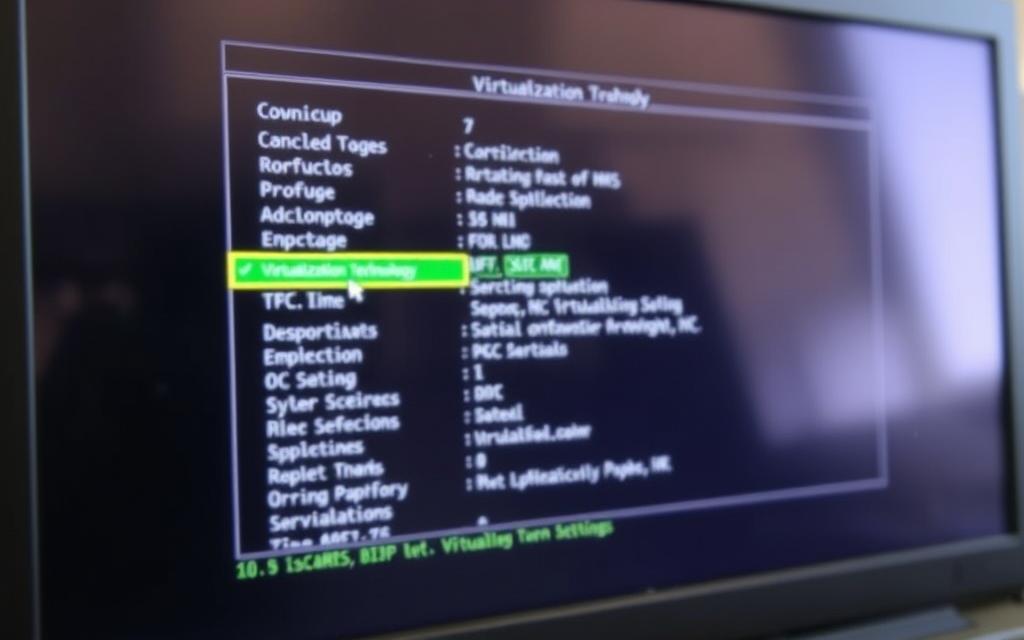
To check if Intel Virtualisation Technology is on, you need to access your computer’s firmware settings. This can be tricky because different makers have different ways to get into BIOS/UEFI. Here, you’ll find how to do it for various devices and tips for common problems.
Accessing BIOS on Dell Systems
1. Restart and press F2 repeatedly
Turn off your Dell Inspiron, XPS, or Precision and press F2 every second. If it has Fast Boot, hold F2 during shutdown before starting again. Look for the blue BIOS screen, not the Windows logo.
2. Navigate to Processor Settings menu
Once in the Dell BIOS:
- Use arrow keys to select Advanced Settings
- Scroll to Processor Configuration
- Look for Virtualisation Technology or VT-x
For older BIOS, these settings might be under Performance.
HP Device Configuration
Using F10 during boot sequence
HP EliteBook and Pavilion users should:
- Start the machine from cold
- Press F10 right when the HP logo shows
- Go to System Configuration → Device Configurations
Business models might need admin passwords to change virtualisation settings.
Lenovo ThinkPad Specific Instructions
Locating Security Chip settings
For ThinkPad T-series and X1 Carbon:
- Enter BIOS with F1/Fn+F1 at start
- Go to Security → Security Chip
- Turn on Intel TXT before changing VT-x
Some ThinkPads with TPM chips have virtualisation in special menus.
Common BIOS Navigation Challenges
Solving missing VT options and outdated firmware issues
If virtualisation settings are greyed out or missing:
- Look for BIOS updates on the manufacturer’s site
- Turn off Fast Startup in Windows power settings
- Reset BIOS to default with Load Optimal Settings
Some laptops hide these options. Check the user manual for how to unlock them with special keys during boot.
Using Windows System Information Tools
Microsoft’s native tools make it easy to check if VT-x is on. You don’t need to go into the BIOS. They give you a clear report on your hardware’s capabilities.
Task Manager Method
Interpreting Virtualisation Status Under Performance Tab
Modern Windows versions show virtualisation status in Task Manager:
- Right-click the taskbar and select Task Manager
- Navigate to the Performance tab
- Look for “Virtualisation: Enabled” under CPU details
This shows if VT-x is supported. But it doesn’t mean Hyper-V will work. Some systems might say Enabled but not work with all virtualisation platforms.
Command Prompt Verification
Using systeminfo.exe and WMIC Commands
For a detailed check:
- Open Command Prompt as Administrator
- Run
systeminfo | find "Virtualisation" - Use
wmic processor get VirtualizationFirmwareEnabled
The WMIC processor get command usually gives more accurate results than systeminfo. If the results don’t match, it might mean there’s a setup problem that needs fixing.
Third-Party Software Solutions
CPU-Z and Intel Processor Identification Utility
Specialised tools offer deeper analysis:
| Tool | VT-x Detection | Hypervisor Awareness |
|---|---|---|
| CPU-Z | Instructions tab | No |
| Intel Diagnostic Tool | Processor Features | Yes |
Both tools help tell the difference between real VT-x support and software virtualisation. The Intel diagnostic tool also flags any hypervisor conflicts that might affect results.
Enabling Intel Virtualisation Technology When Disabled
To turn on virtualisation, you need to adjust your BIOS settings. You also have to watch out for system conflicts. This guide will show you how to set up these advanced options. It also talks about the security risks of using hardware-assisted virtualisation.
Step-by-Step BIOS Configuration
Changing VT-d and VT-x Settings
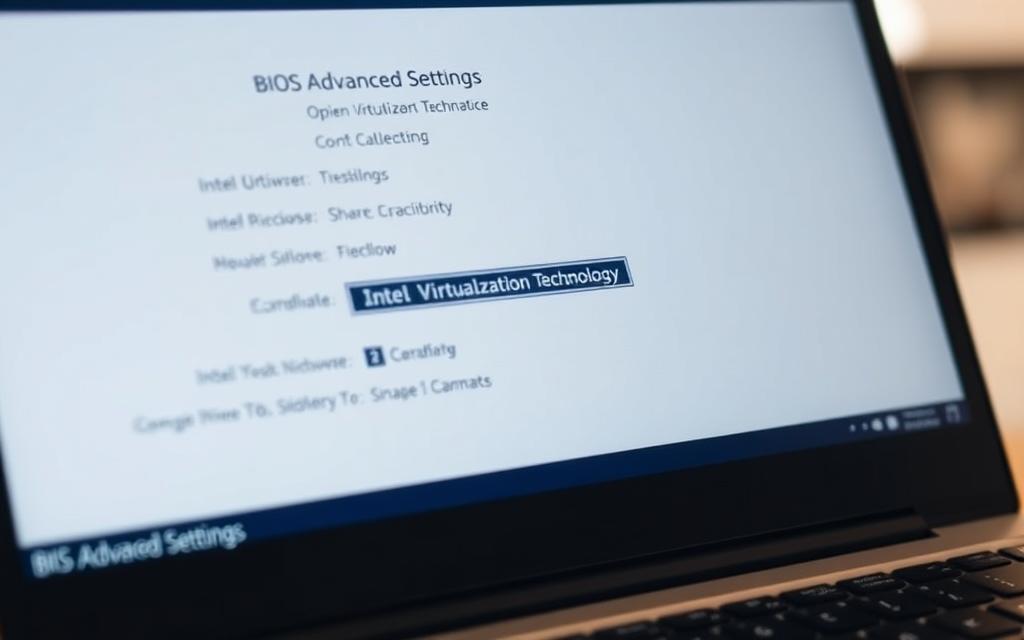
First, go to your motherboard’s advanced CPU configuration menu. Use the arrow keys when your computer starts. For Asus systems, this is found under ‘Advanced Mode > CPU Configuration’. Look for the VT-x and VT-d toggles.
To enable these features, follow these steps:
- Turn ‘Intel Virtualisation Technology’ to Enabled
- Switch ‘VT-d’ on for device passthrough
- Save your changes with F10 before leaving
Some computers need you to disable the Execute Disable Bit first. Check your motherboard manual if you’re not sure about the settings.
Troubleshooting Common Activation Issues
Handling Greyed-Out Options and Hypervisor Conflicts
If VT options are greyed out, there could be a few reasons:
- Windows Hyper-V or Credential Guard might be running
- Your BIOS might be outdated and not support virtualisation
- Corporate devices might have settings locked
For Hyper-V problems, try this command in an admin Command Prompt:
dism.exe /Online /Disable-Feature:Microsoft-Hyper-V
Users of consumer laptops might need special tools. Lenovo Vantage and HP Support Assistant can help enable virtualisation without going into the BIOS.
Security Considerations
Balancing Performance Gains With Possible Vulnerabilities
VT-d can speed up GPU passthrough and DMA operations. But, if not set up right, it can leave your system open to direct memory access attacks (CVE-2023-1111). Here are some steps to keep your system safe:
| Risk | Mitigation |
|---|---|
| VT-x privilege escalation | Enable IOMMU protection |
| DMA attacks | Use SR-IOV isolation |
| Hypervisor exploits | Update microcode regularly |
Keep your BIOS settings locked down and watch for new virtualisation security risks. Intel sends out alerts for these. Turn off VT features when you’re not using them for development or testing.
Conclusion
Checking if Intel Virtualisation Technology is active is key for better software performance. This is true for both development environments and big business systems. We’ve shown how to check it on different devices, like Dell Precision workstations and Lenovo ThinkPads.
Tools like Windows Task Manager and command-line tools can quickly tell you if it’s working. You don’t need extra software for this.
Setting up VT right is about finding the right balance between being open and keeping things safe. Companies should focus on setting strong BIOS passwords and keeping firmware up to date. This is very important when using virtual machines for sensitive data.
HP and Dell have special support sites for fixing problems with ProBook or Latitude devices.
IT teams handling lots of devices should have a checklist before starting. They should check if VT-x is on in the BIOS, test if the hypervisor works, check who can access it, and plan for firmware updates. This is also good for cloud projects to make sure everything runs smoothly.
Problems with keeping VT active often come from old motherboard firmware or other security software getting in the way. If you’re having trouble, check the help pages for ASUS, Acer, or Microsoft Surface. Keeping your virtualisation setup in check is important for new tech like AI and container apps.
Have you faced any challenges with VT setup or found a good way to use it in your business? Share your stories below. For more on customising BIOS, look at your device’s support site or your company’s IT portal.
FAQ
What is Intel VT-x and how does it improve virtualisation performance?
Intel VT-x is a tech that makes virtual machines run better. It uses special protection levels to improve performance by 20-35%. This is thanks to features like extended page tables (EPT) and VMCS shadowing, as Intel explains in their papers.
Which Intel processors support VT-x technology?
Many Intel processors support VT-x. This includes Core i5, i7, i9 (from the 7th generation onwards), and Xeon E3/E5/E7 series. Also, some Pentium/Celeron chips with vPro support it. Check Intel’s ARK database for exact models.
How do I check if VT-x is enabled in Windows 10/11?
Check in Task Manager under the Performance tab. Look for “Virtualisation: Enabled”. Or, run systeminfo.exe in Command Prompt to see if Hyper-V is ready.
Why can’t I find VT-x settings in my Dell/HP/Lenovo BIOS?
Some laptops hide VT-x settings. For Dell Inspiron/XPS, look in Security → Virtualisation. HP Pavilion/EliteBook users should check System Configuration → Device Configurations. Lenovo ThinkPad T-series needs Intel TXT enabled first.
Does enabling VT-x pose security risks?
VT-x can make systems run faster but might risk security. It could lead to DMA attacks (CVE-2021-0089). To stay safe, enable VT-d for IOMMU protection and keep EPT active. For extra security, use VT-x with Credential Guard and Core Isolation in business settings.
How do I resolve Fast Boot conflicts with VT-x activation?
Disable Windows Fast Startup in Control Panel → Power Options. Reset BIOS to default settings. For Dell Precision workstations, set “Virtualisation Performance” to Native Mode in Performance settings.
Can I enable VT-x on OEM-locked consumer laptops?
Some HP Pavilion and ASUS Vivobook models block VT-x. Use tools like HP BIOS Configuration Utility or PhoenixTool to modify firmware. But, this will void warranties and could damage devices if done wrong.
Why does CPU-Z show VT-x as disabled when Task Manager says it’s enabled?
Hypervisors like Hyper-V or VirtualBox might take control of VT-x. Run bcdedit /set hypervisorlaunchtype off in Command Prompt and reboot. Use Intel’s Processor Identification Utility to confirm VT-x status.
What’s the relationship between VT-x and SLAT in Windows 11?
VT-x and Second Level Address Translation (SLAT), via Intel EPT, are key for Hyper-V on Windows 11. VT-x is the base for virtualisation, while SLAT handles memory. Both must be on for Hyper-V to work fully.
How do I update BIOS to enable VT-x on older systems?
For AMI BIOS, download firmware from the OEM’s site, make a DOS bootable USB, and run afuwinx64.exe. Phoenix BIOS needs phlash16 utility in legacy mode. Always back up BIOS and keep power on during updates to avoid damage.
